
If you just hired someone to handle your SEO, there’s one more step before they can actually get to work. They need access to a few of your Google accounts.
Figuring out how to give an SEO agency access trips people up more often than it should. You want your agency to have what they need, but you also want to stay in control of your own accounts. The good news is Google makes this simple once you know which permission level to choose.
Here’s a straightforward SEO agency access checklist covering the three tools your agency needs, plus exactly how to grant access to each one.
Why These Three Tools Matter
Before getting into the steps, it helps to understand what each tool does for your business.
Google Search Console shows how Google sees your website. It tracks keyword rankings, flags pages with crawling or indexing errors, and confirms your site is showing up correctly in search results.
GA4 (Google Analytics 4) tracks what happens after someone lands on your site. It shows user behavior, conversion rates, and bounce rates, which helps prove which strategies are actually turning visitors into leads.
Google Business Profile controls your presence on Google Maps and the local search results contractors depend on most. Managing this profile means updating your hours, posting offers, and responding to customer reviews, all of which support your local rankings.
Giving your agency access to these three tools is what allows them to do the work you’re paying for.
How to Add a User to Google Search Console
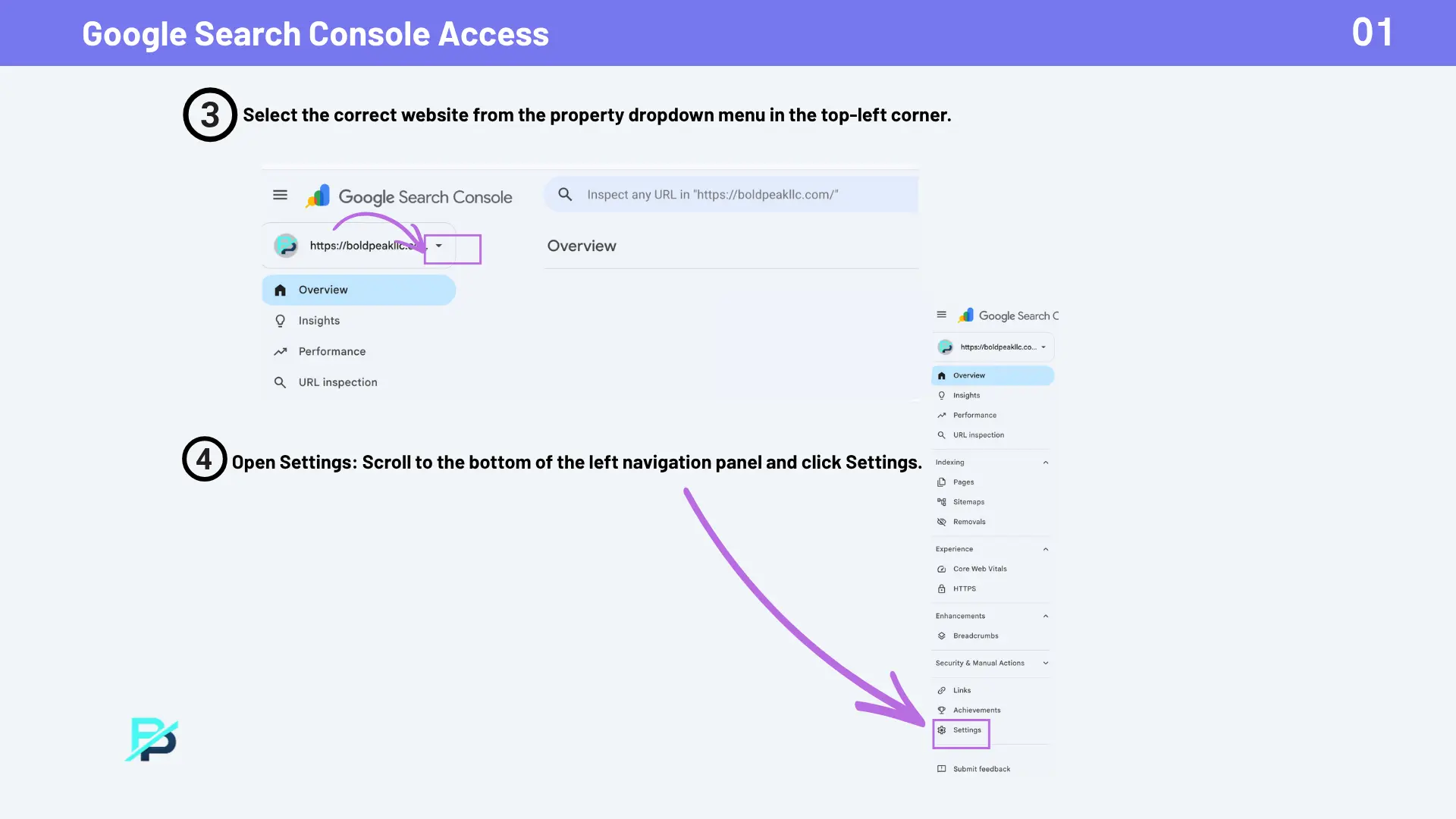
- Go to Google Search Console and log in with the Google account tied to your website.
- Select your website from the property dropdown in the top left corner.
- Scroll to the bottom of the left menu and click Settings.
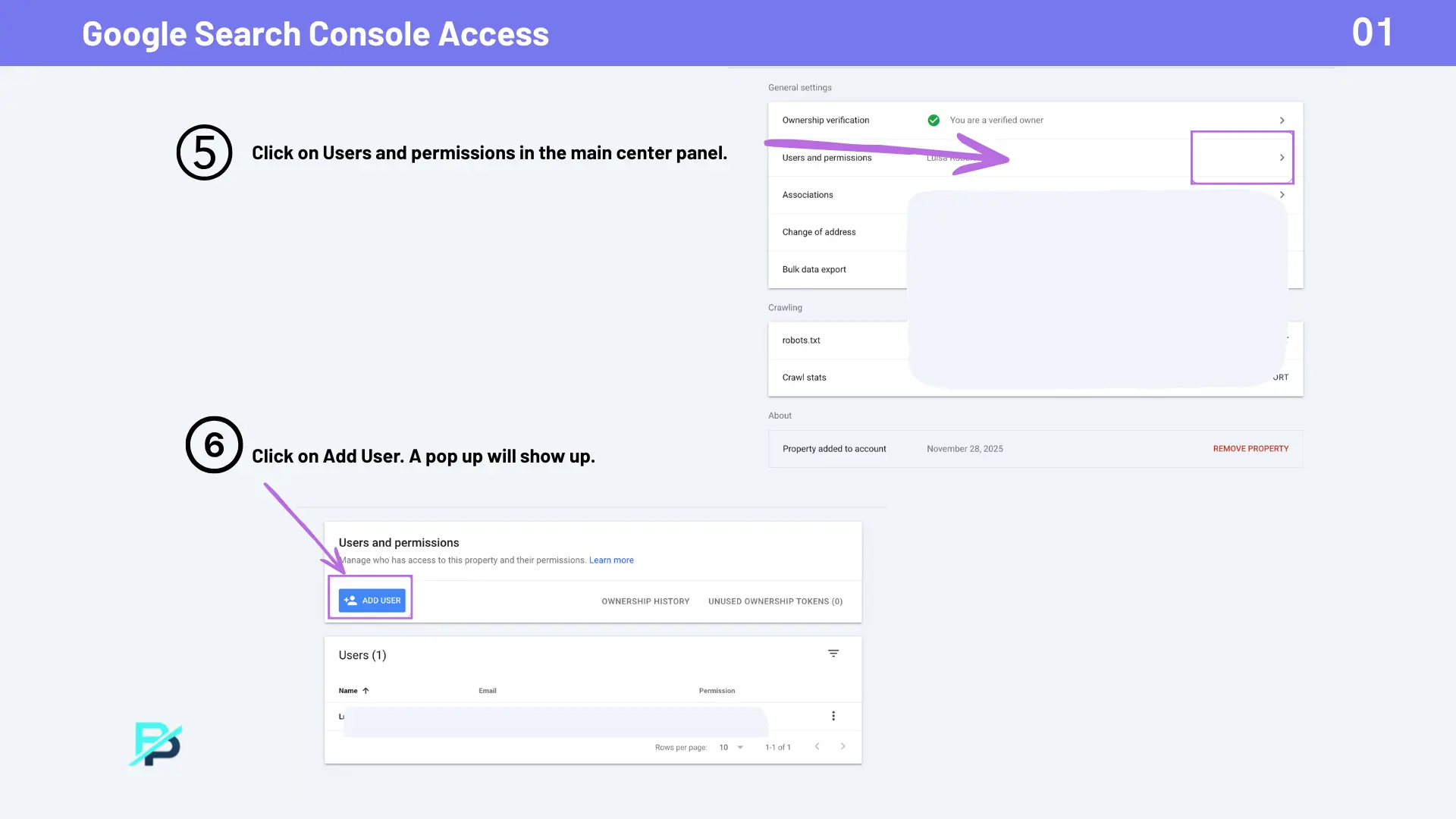
- Click Users and permissions.
- Click Add User.
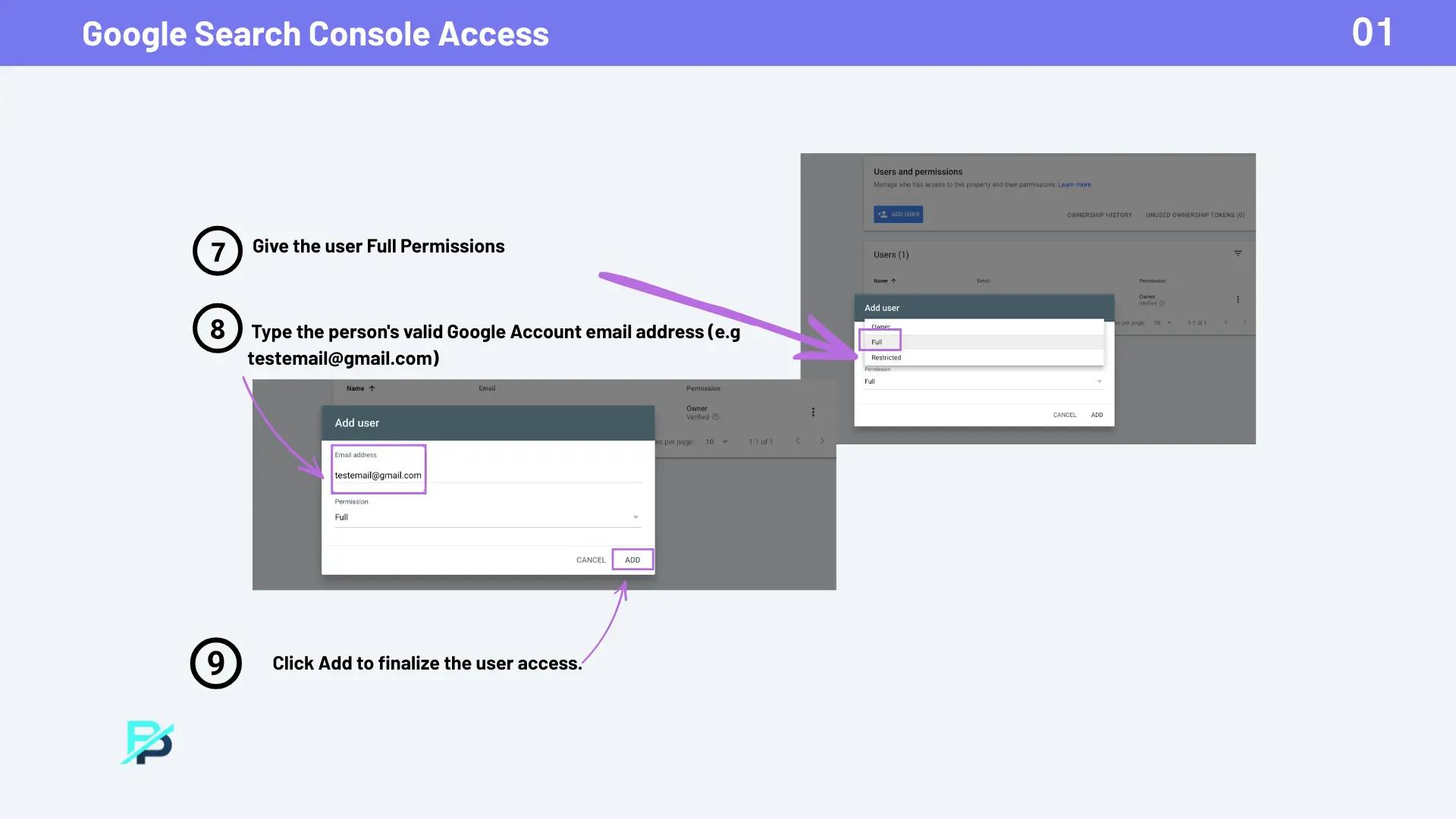
- Type in your agency’s Google account email address.
- Set the Google Search Console user permissions to Full.
- Click Add to finish.
Google Search Console Access Levels: Full vs Restricted
Search Console gives you two access levels to choose from. A full user can see all the data, submit sitemaps, and request URL inspections, everything an agency needs to actually manage your SEO. A restricted user can only view data. If you’re wondering whether to choose full user vs restricted user for Search Console, full access is the right call for an SEO agency doing hands-on work.
How to Add a User to Google Analytics (GA4)
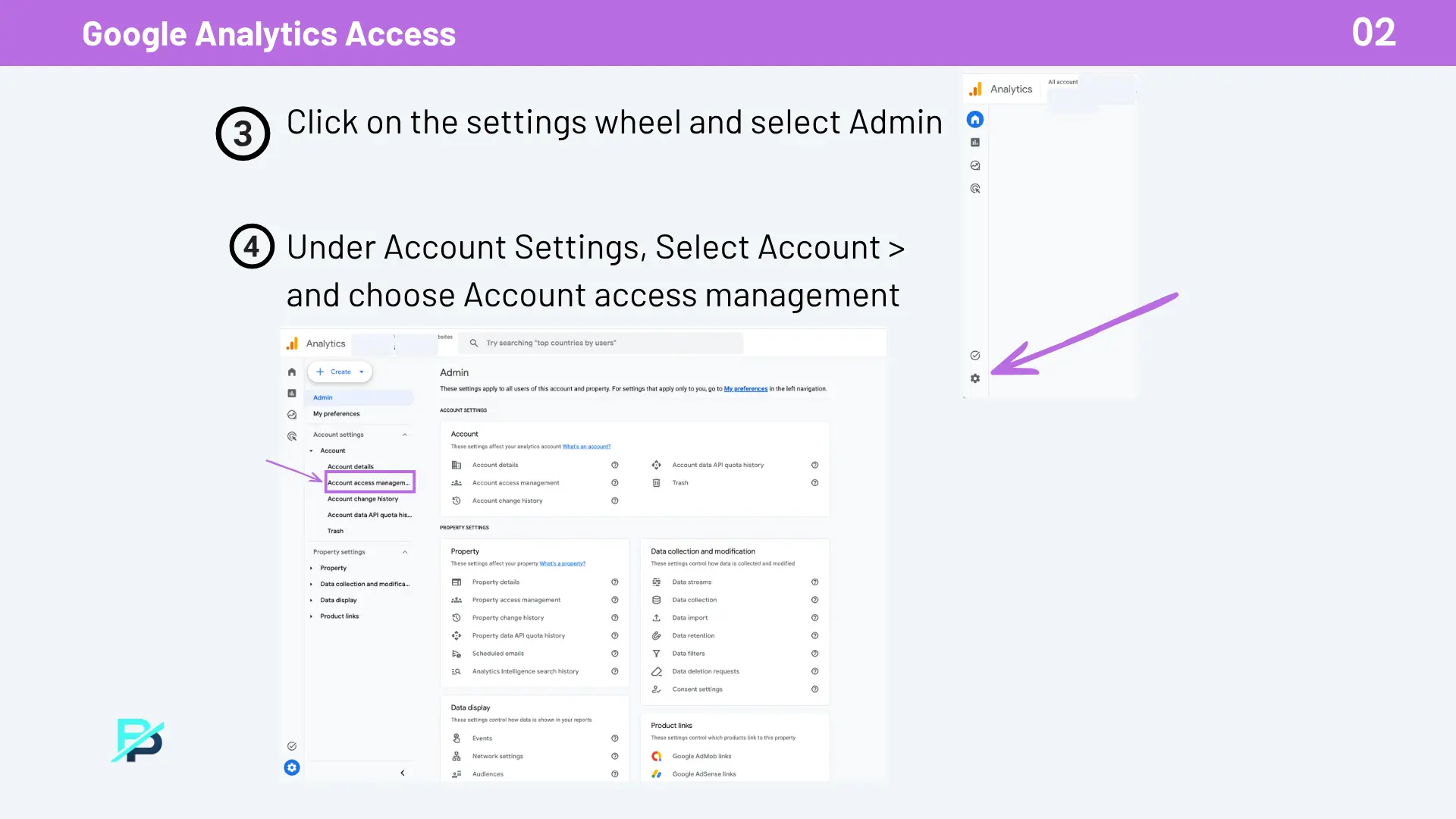
- Go to Google Analytics and log in with the Google account tied to your website.
- Click the settings wheel and select Admin. This is where you’ll find Google Analytics admin access settings.
- Under Account Settings, select Account, then Account access management.
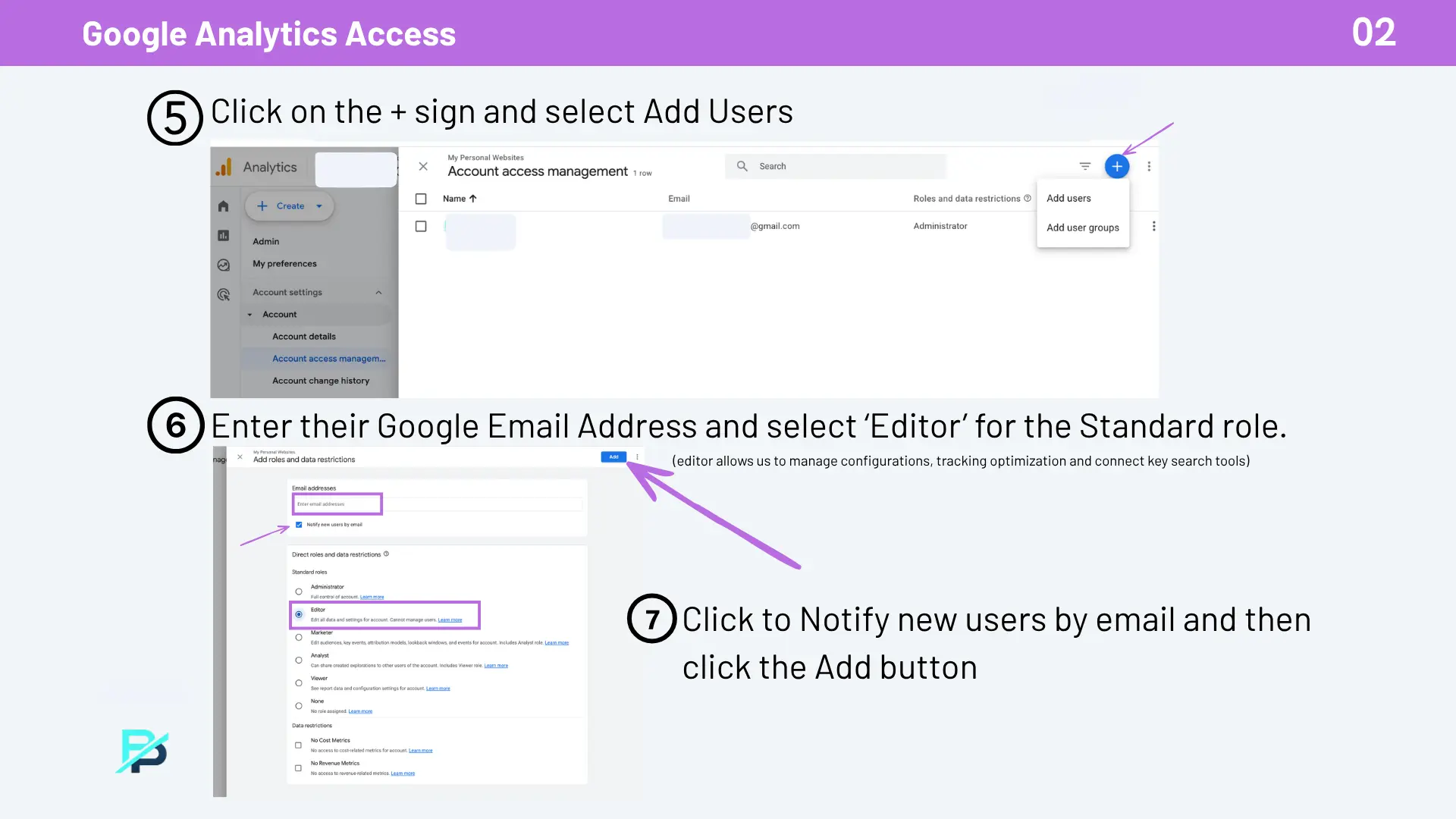
- Click the + icon and select Add users.
- Enter your agency’s Google email address.
- Choose Editor as the standard role.
- Check the box to notify new users by email, then click Add.
GA4 Administrator vs Editor Access
GA4 offers a few standard roles, and the two you’ll run into most are Administrator and Editor. An Administrator can manage users and change account-level settings, including removing other people’s access. An Editor can manage configurations, tracking, and key search tool connections, but can’t add or remove users. For most agency relationships, Editor is the safer choice. It gives your agency what they need to do the work without handing over control of who else can get in.
How to Add a Manager to Google Business Profile
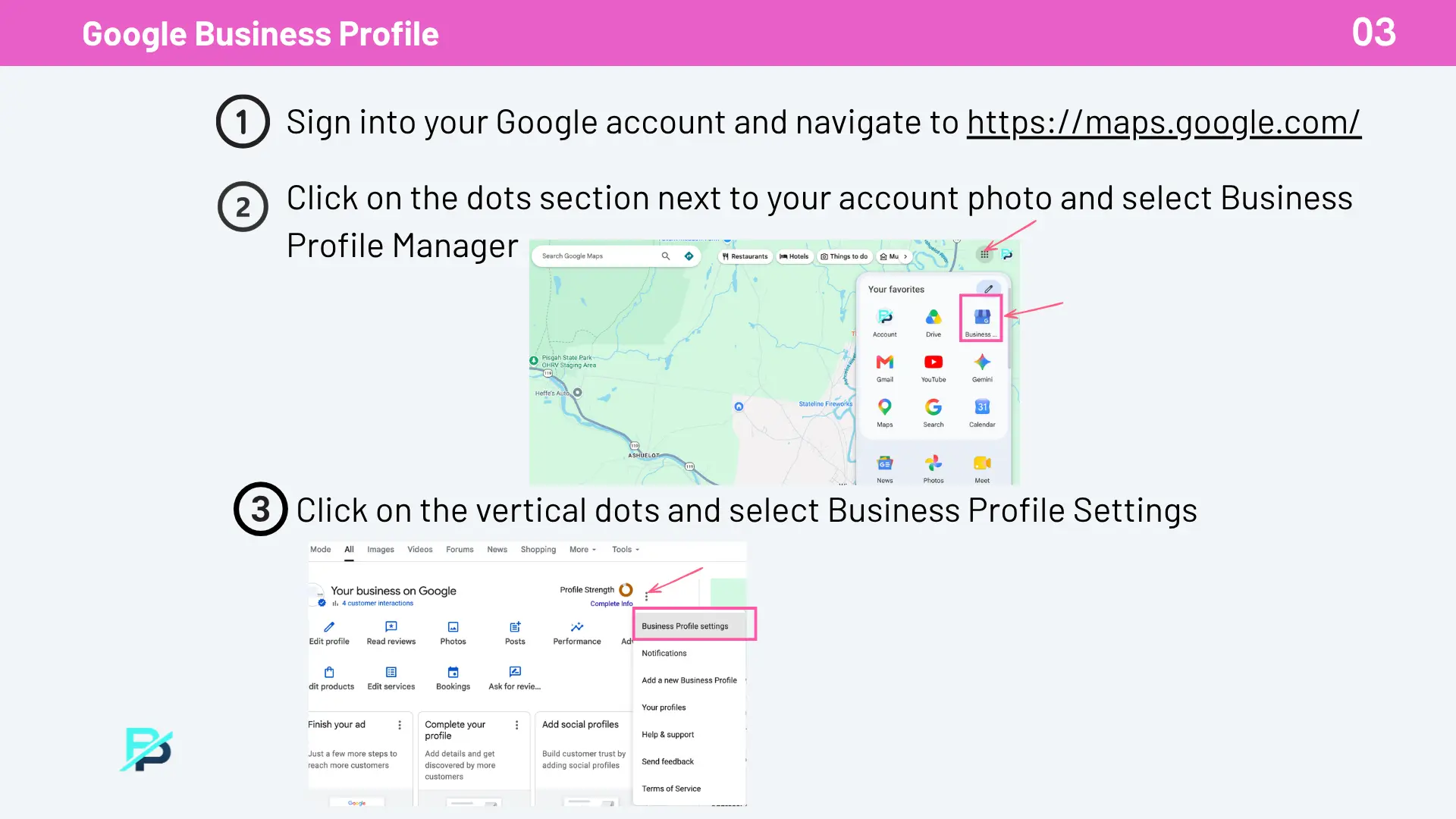
- Sign into your Google account and go to Google Maps.
- Click the dots next to your account photo and select Business Profile Manager.
- Click the vertical dots and choose Business Profile Settings.
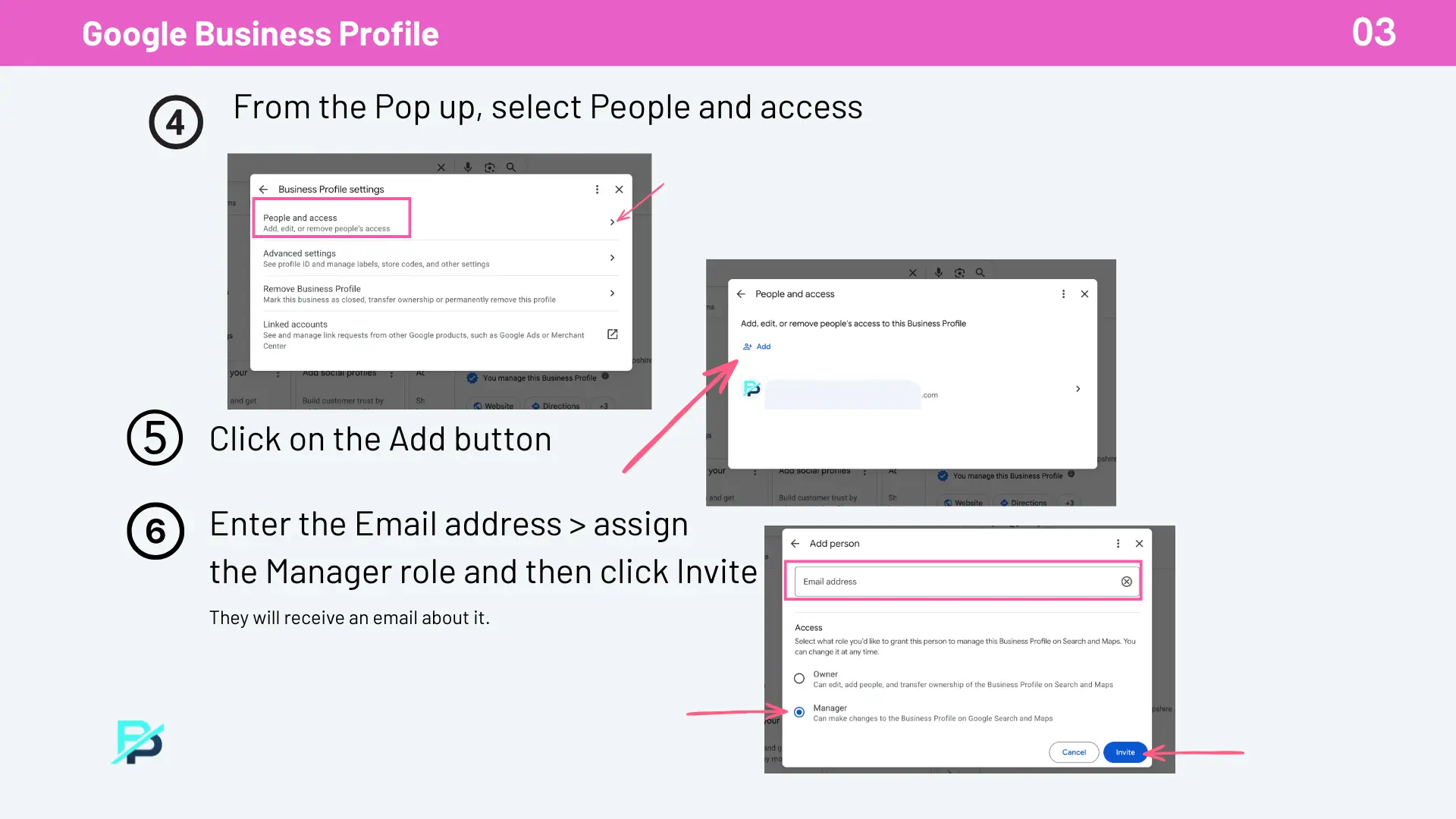
- Select People and access from the pop-up.
- Click Add.
- Enter your agency’s email address, assign the Manager role, and click Invite.
Your agency will get an email confirming the invite once each step is complete.
Owner vs Manager on Google Business Profile
Google Business Profile has two main roles worth understanding. An Owner can edit everything, add other people, and transfer or remove the entire profile. A Manager can make changes to the profile on Search and Maps but can’t remove it or transfer ownership. Owner vs Manager on Google Business Profile comes down to control: keep Owner for yourself, and give your agency Manager access so they can do the work without the ability to take the profile away from you.
How to Remove Agency Access When You’re Ready
If you ever switch agencies or bring SEO in house, you can remove access the same way you granted it.
For GA4, an Administrator can go back into Account access management, select the user, and remove them. This is one more reason Administrator access should stay with you or someone on your team, not your agency, since it’s what lets you remove agency access from Google Analytics whenever you need to.
The same pattern applies to Search Console and Google Business Profile. Head back to Users and permissions or People and access, find the person, and remove them.
SEO Agency Access Checklist
Use this as a quick reference before you hand off access:
- Google Search Console: added as a Full user
- GA4: added as an Editor (Administrator stays with you)
- Google Business Profile: added as a Manager (Owner stays with you)
- Confirmed the agency received their invite emails
- Saved a note of who has access to what, in case you need to remove it later
Want the Full Walkthrough?
If you’d rather follow along with screenshots for each step, download the full guide below. It walks through each platform with the exact screens you’ll see along the way.
Download the PDF Guide: How to Enable SEO Agency Access
The Next Step
Setting up Google account access for a marketing agency is quick once you know which role to choose. If you’re a Bold Peak client getting ready to grant access, save this post and the PDF guide so you have both handy.
If you haven’t started working with an SEO agency yet and want help getting your local rankings on track, I’d be happy to walk you through what that process looks like.